Recent News
View our recent news archive
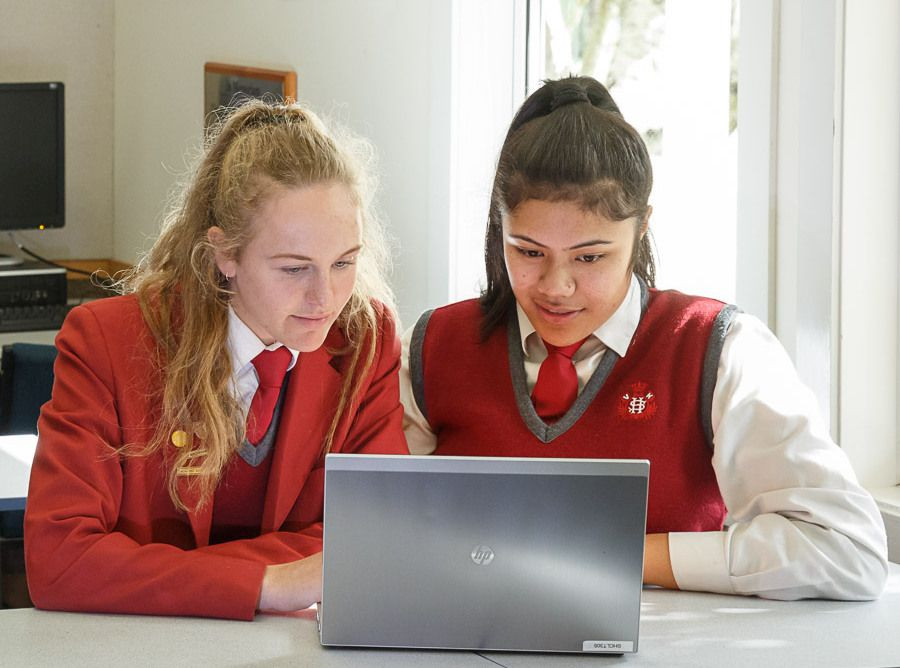
E-learning uses digital devices to support and enhance learning, therefore we are not recommending any one specific device. However, we do recommend certain capabilities that a device should have in order to be the most effective in the classroom. Sacred Heart College is a Microsoft school. Office365 can be downloaded (free) onto student laptops at the beginning of the school year.
It is not realistic to expect teachers to know how to use all of the devices students bring into their classes. Therefore it is important that your student knows the basics about their device use. Some of the larger retailers offer free training as part of the purchase package.
| BYOD (Bring Your Own Device) and Headphones | Minimum Recommended SpecificationsWe are a Microsoft 365 school.To ensure a device lasts your student until Year 13, we strongly recommend purchasing a laptop. Office 365 can be downloaded (free) onto student laptops at the beginning of the school year. The following information is to be used as a guide only, however higher specifications will extend the useful life of the device which must be Windows 11 capable. | |
| Processor: AMD Ryzen 5, Intel i3/i5 10th gen or higher | Browser capability: internet and Wi-Fi | |
| Minimum RAM: minimum 8GB, ideally 16GB (8GB is sufficient for junior students however not for their senior years) | Hard Drive: SSD recommended, minimum 256GB or more if possible | |
| Screen Size: minimum 11". For senior school use, 13" or larger screen size is preferred. | Microsoft Office: all SHC students have access to a licensed copy of Microsoft Office 365 (at no cost) | |
| Keyboard: recommended | Service/Support: all students are able to connect to the school's Wi-Fi network. However, the school does not provide any service or support for student-owned devices. | |
| Battery: minimum of 5 hours plus (There are limited charging facilities for student use) | ||
| Antivirus: strongly recommended | Insurance: the school does not accept responsibility if a device is lost, damaged or stolen. Please check that your own policy covers the device. | |
The college uses Microsoft Office 365 as its student Learning Management System which students can access from school and home. All classes use Microsoft Teams to share resources and communicate with each other. Each students' license gives students free licences to download office products on up to 5 Windows devices.
The device is each student's own responsibility. They will be expected to know the basics of using their particular device for example turning on and off, volume control, locating and saving files. It is not the teacher's responsibility to know how to use every type of device available, however teachers would be able to help with skills such as file management.
All students are encouraged to bring their own device to use in school to support E-learning in classes. Smaller devices such as iPad minis have a place for quick reference but should not be the main device for use in a classroom. Generally teachers have found laptops are better than other devices for students to use in classrooms.
Your student will be required to sign a new digital citizenship agreement with the school and teachers will take every opportunity to talk with students about what this means. The agreements are published on the school website for parents to view. The deans and form teachers hold an initial workshop for the students at the start of the year.
When students bring a device to school they are responsible for its care and safety. The device should be with the student or in a locked locker at ALL TIMES. Every department in the school will be encouraged to use student devices as a tool to enhance learning. This means the devices may not be used in every lesson all of the time.
The school has upgraded its network so that it has improved ability to monitor the use of all devices connected to it. If your student has access to the internet via their own data plan and is not accessing the internet via the school wireless network then they can go to any website that they choose. Parents should discuss safe internet usage with their student.
We would welcome any questions/comments/suggestions from parents. This can be done via the website or email Mr Samuel Chan: [email protected].